Solarwinds > SQL - Missed Work Dispatcher Process - Currenly, this monitor is triggered out of the Solarwinds Orion site. This document only pertains to emPower clients as EROMS does not utilize this processing engine for scheduled jobs.
OVERVIEW:
The work dispatcher is controlled through the emPower Watchdog NT service (see article named "Monitoring – emPower Service – Watchdog/Work Dispatcher"). Most of the time, these jobs that are triggering this monitor alert are just stuck and need to be manually triggered to allow the process to process again.
TROUBLESHOOTING:
- The first thing you need to do is forward the monitor email to Zendesk (CustomerCare@epsolutions.com) for tracking case creation.
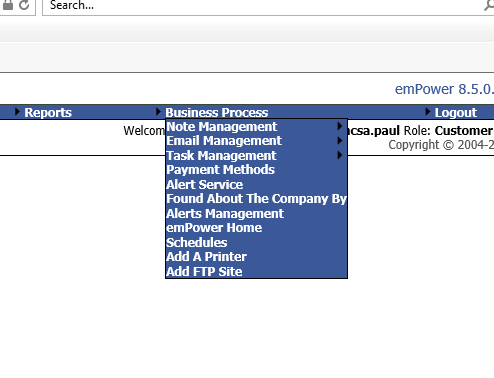
- Next you need to do is log into emPower and navigate to the emPower Home page (under Business Process menu item)
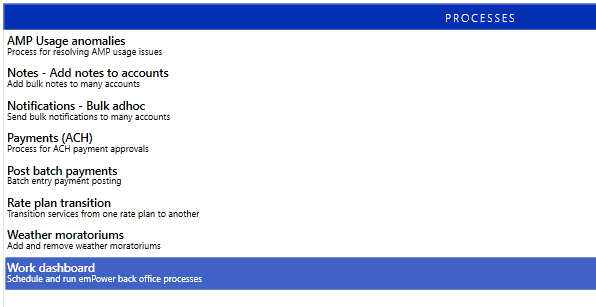
- Once the emPower Home page loads, you need to navigate to the Work Dispatcher page (in the "PROCESSES" block").
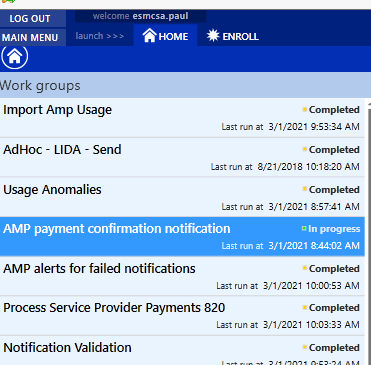
- In the Work Dispatcher Work Groups. look for the named process from the alert. Once found, double check to make sure the process has either missed its scheduled time or has been running for an inappropriately amount of time. Most jobs will run and complete pretty quickly but there are a couple of jobs that have been known to run for longer than an hour. These jobs may include the AMP Rating Engine, the AMP Taxing Process, and the Promotion process. For the time being, these are the only known jobs that may run for over an hour. If any other process has been running for over an hour, it is a pretty safe bet that the process needs to be restarted. In the screenshot below, the "AMP payment confirmation notification" process showed to be "In progress" and shows to have started at 8:44 AM.
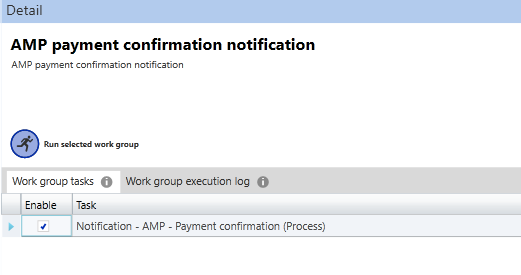
- Once you highlight the needed job, the underlying process in the highlighted work group will populate. There will also be a job to allow manual running of the process. You need to click on the "Run selected work group" button. You should see the "Last run at" time to update to the current time and also, the status should go to "In progress" if in a "Scheduled" status. If already "In progress", only the time will update.
- The process will begin running and it may take several minutes to complete depending on the job. If you click the refresh button on the top right of the page (screenshot below). When the process completes, it should move from an "In progress" status into a "Completed" status.

- If the steps above are not working and more than 10 minutes passes and the process still does not clear to a "Completed" status (and not an AMS/AMP rating process ["Usage AMP - Usage Tracking (Engine)" process name]), begin the troubleshooting steps in the "Monitoring – emPower Service – Watchdog/Work Dispatcher" article to restart the underlying process.
- If after performing those steps the process is still not picking up, leave the work group in an "In progress" status and notify Abhi, Paul, or Sai as to the potential issues with the Work Dispatcher failing process.
Comments